
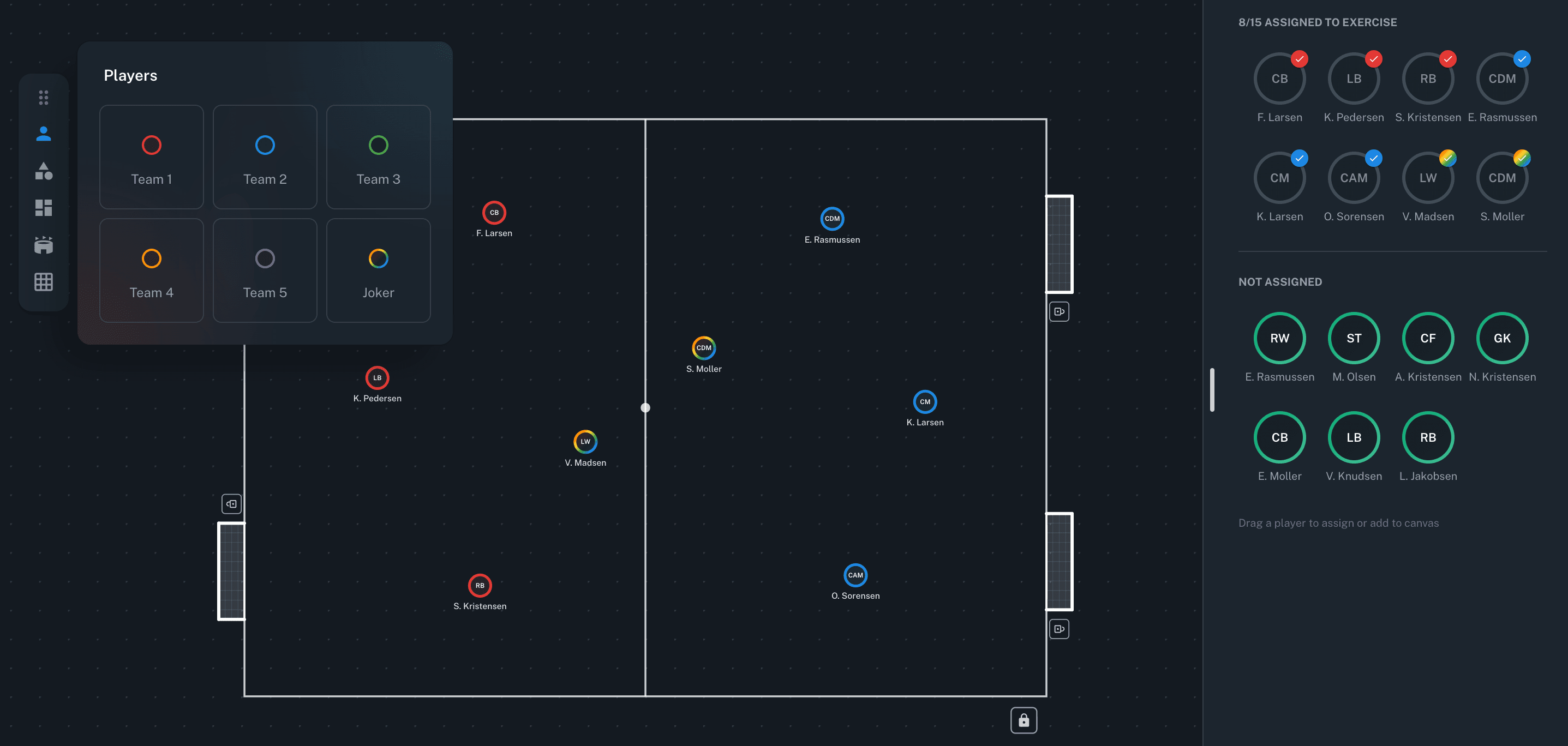
Auto Position: Asigna jugadores a ejercicios en segundos
Todo entrenador conoce este momento. Has diseñado un gran ejercicio — rojos contra azules, 6v6 en zona de presión. Ahora viene la parte que nadie disfruta: arrastrar 12 jugadores reales, uno por uno, a los espacios correctos. Luego pasas al siguiente ejercicio y lo haces todo de nuevo. Multiplica eso por una sesión completa con más de 20 jugadores, y habrás dedicado más tiempo a la administración que al contenido real del entrenamiento.
¿Y si un solo clic pudiera encargarse de todo?
Presentamos Auto Position para el Diseñador de Ejercicios — una función que toma tu plantilla de sesión y asigna inteligentemente cada jugador a cada espacio del ejercicio. Sin arrastrar. Sin buscar nombres. Solo asignación rápida y consciente de las posiciones para que puedas volver a lo que importa: diseñar un gran entrenamiento.
El problema: Repetitivo, tedioso, consume tiempo
El Diseñador de Ejercicios de Driblo te permite construir ejercicios de entrenamiento visualmente — colocando jugadores, conos, porterías, zonas y flechas en un lienzo de campo. Cuando un ejercicio está vinculado a una sesión de entrenamiento, la plantilla de la sesión está disponible: jugadores reales con sus posiciones registradas (PO, DFC, MC, DC, y así sucesivamente).
El lienzo muestra elementos de jugadores en colores de equipo — 6 espacios rojos, 6 espacios azules, quizás un par de comodines. Cada espacio necesita un jugador real asignado. ¿El enfoque tradicional? Arrastrar y soltar manual. Un jugador a la vez.
Funciona. Pero es lento. Y cuando estás construyendo 4-5 ejercicios por sesión, esos minutos se acumulan rápido.
La solución: Auto Position
Auto Position es un flujo de trabajo de un clic integrado directamente en el Diseñador de Ejercicios. Abre el panel de asignación, elige tu modo, presiona aplicar — y cada espacio vacío se llena con el jugador correcto.
Funciona con tu plantilla real de sesión — los jugadores reales que asisten al entrenamiento de ese día — y usa sus posiciones registradas para tomar decisiones inteligentes sobre dónde pertenece cada jugador.
Dos modos inteligentes
Dividir uniformemente
La opción completamente automática. Dividir uniformemente toma todos los jugadores disponibles de la sesión y los distribuye en los espacios vacíos del lienzo. Equilibra los grupos de posición — porteros, defensas, centrocampistas, delanteros — uniformemente dentro de cada color de equipo.
Si tu ejercicio tiene 6 espacios rojos y 6 azules, cada grupo de color obtiene una mezcla equilibrada. Los defensas no terminan todos en un lado. El resultado es una configuración realista lista para entrenar sin ninguna entrada manual.
Mejor para: Configuración rápida cuando quieres equipos equilibrados y no necesitas control específico de posiciones.
Por posición
La opción controlada por el entrenador. Por posición te permite decidir qué categorías de posición pertenecen a cada color de equipo en el lienzo.
Por ejemplo:
- Equipo rojo = Defensa + Mediocampo
- Equipo azul = Ataque
El algoritmo primero coloca jugadores cuya posición real coincide con las categorías seleccionadas. Si quedan espacios, los llena con jugadores no asignados de la plantilla. Esto te da control preciso — ideal para ejercicios donde el grupo defensor necesita ser defensas reales.
Mejor para: Ejercicios específicos por posición, ejercicios de fases de juego y situaciones donde la composición del equipo importa tácticamente.
Por qué los entrenadores lo aman
- Ahorra tiempo real — Minutos de arrastrar por ejercicio, multiplicados por cada ejercicio en cada sesión. Ese tiempo se acumula a lo largo de una temporada.
- Inteligencia consciente de posiciones — Los defensas terminan donde deben estar los defensas. Los delanteros van donde pertenecen los delanteros.
- Respeta los colores de equipo — El sistema entiende que los grupos rojo, azul, verde y comodín son unidades separadas en tu lienzo.
- Funciona con plantillas reales — No son nombres genéricos de relleno. Son los jugadores reales de la asistencia del día, con posiciones y nombres reales.
- Flujo de trabajo de un clic — Abrir panel, elegir modo, aplicar, listo. Cuatro pasos. Segundos, no minutos.
Dónde encaja en tu flujo de trabajo
Auto Position vive en el Diseñador de Ejercicios, que es parte de las herramientas de planificación de sesiones de Driblo. El flujo de trabajo típico se ve así:
- Crea una sesión de entrenamiento y confirma tu plantilla
- Abre un ejercicio en el Diseñador de Ejercicios
- Coloca tus elementos de jugadores en el lienzo (colores de equipo, posiciones en el campo)
- Haz clic en Auto Position para asignar jugadores reales
- Ajusta si es necesario — intercambia un jugador, ajusta un rol
- Pasa al siguiente ejercicio y repite
Porque funciona a nivel de ejercicio, puedes usar diferentes modos de asignación para diferentes ejercicios. Un ejercicio de posesión podría usar Dividir uniformemente, mientras que un ejercicio de fase de juego podría usar Por posición con defensas en un lado y delanteros en el otro.
Siempre con control total
Auto Position es un punto de partida, no una respuesta final. Después de la asignación automática, cada jugador puede ser intercambiado, movido o reasignado manualmente. La función se encarga del trabajo tedioso en masa para que tu energía se dirija a las decisiones tácticas que realmente requieren el ojo de un entrenador.
Auto Position está disponible ahora en el Diseñador de Ejercicios de Driblo. Deja de dedicar tu tiempo de preparación a arrastrar y soltar. Deja que la automatización inteligente se encargue de la asignación para que puedas concentrarte en construir ejercicios que desarrollen a tus jugadores.
